NEC DSX Telephone System

Posted on

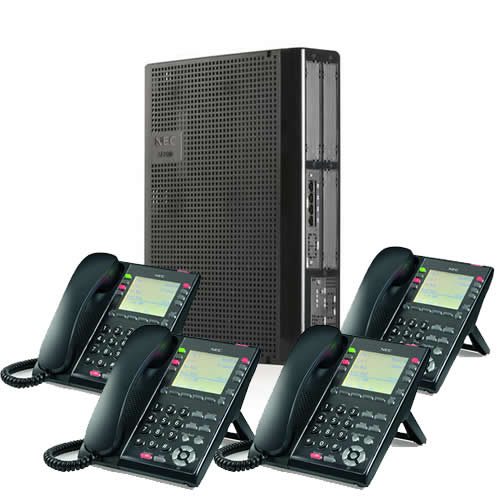
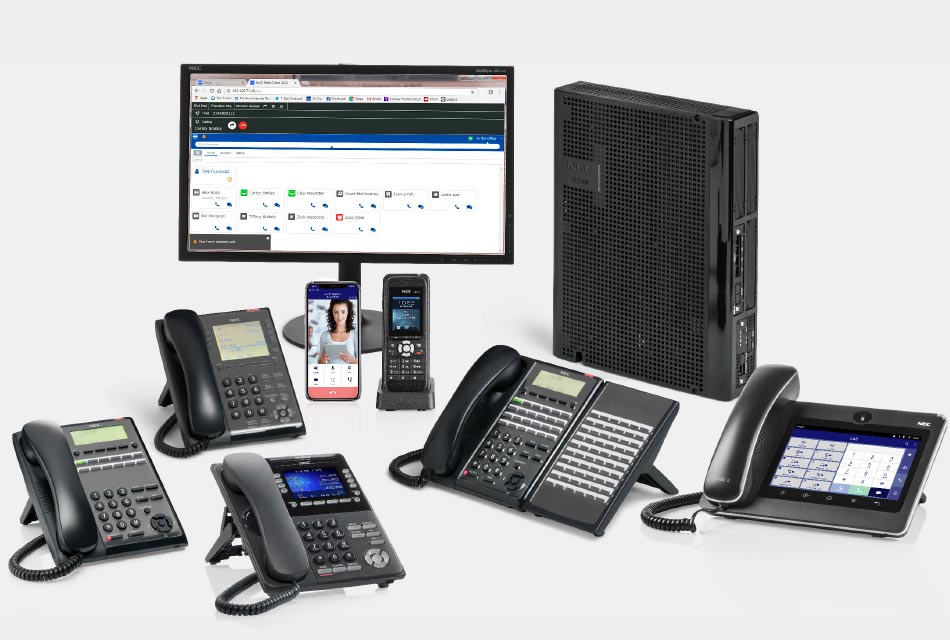
The NEC DSX Telephone System was designed for mid-sized businesses whose size might increase in the next few years. Principally, the NEC DSX Telephone System was created on the success of its predecessor, the NEC DS2000. Whereas the DS2000 can accommodate a maximum of thirty-two Lines, the NEC DSX Telephone System increases that amount to sixty-four lines. What’s more, the NEC DSX Telephone System has the capacity to upgrade to 104 ports, with an available new 8 slot cabinet.

This system is great because it allows your business to accommodate more employees without radically changing the core programming of your system. Speaking from a hardware perspective, the NEC DSX Telephone System has the power to adequately handle increased headsets and call volume. And you don’t have to reprogram the entire system to do it.

All the features you’ve come to expect from an NEC Telephone System are present in the NEC DSX Telephone System, like caller ID, speed dial, voice over, group call pickup, and multi-party conference. Perhaps the NEC DSX Telephone System’s most useful new feature is its Intramail voice mail system. Now you can actually record a conversation for posterity purposes, as well as “park and page” your calls so that they are routed effectively.

When you have decided on the features and functions you want installed on your NEC DSX Telephone System, we’ll program the headsets so that they are already set up and operational when your employees plug their phones in. In business, productivity is everything. The last thing you want is your employees wasting time trying to figure out how to work their new phones. Let us do the worrying for you!

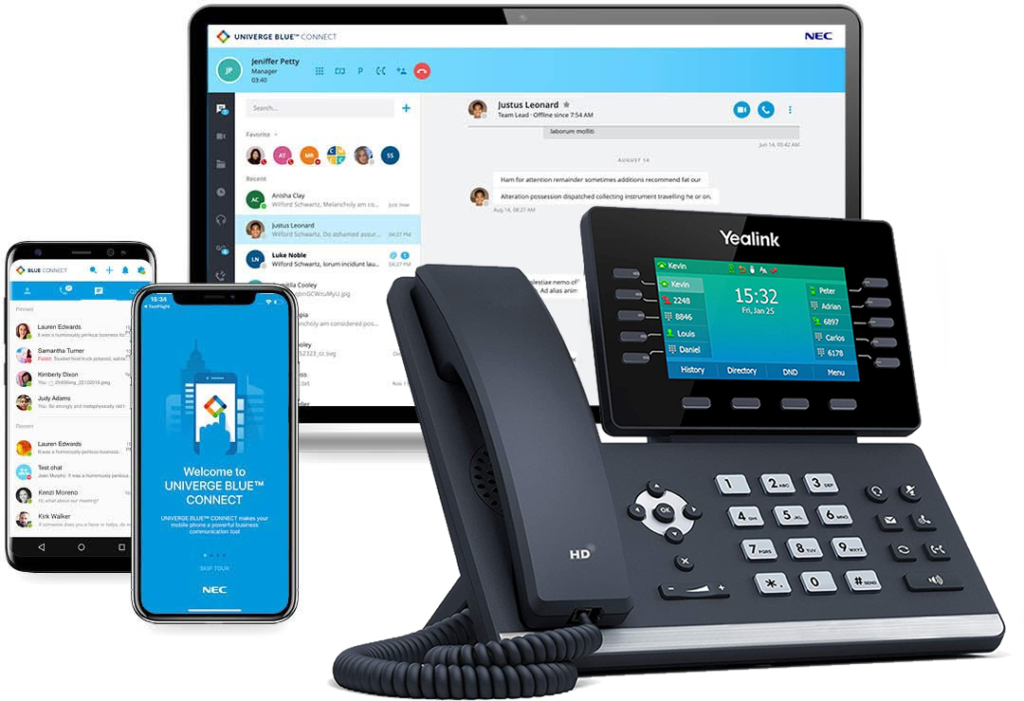
Plug And Play Telephone System

Posted on Leave a comment

Plug And Play Telephone Systems

You own a small business. You’ve purchased telecommunications products in the past, but you have never had an integrated system. Recently, certain parts have broken, so you are looking to upgrade your entire system to bring it into the 21st century. Can you find a full-service Plug And Play Telephone System that will allow you to utilize the technology you already have?

The answer is yes, if you choose the right system. Some Plug And Play Telephone Systems make upgrades, expansions, and integrations difficult. If your company gains a significant increase in business, you could find yourself unable to process all your phone traffic. With these issues in mind, it is critical that you not only examine the features provided with a particular system, but the system’s adaptability as well.

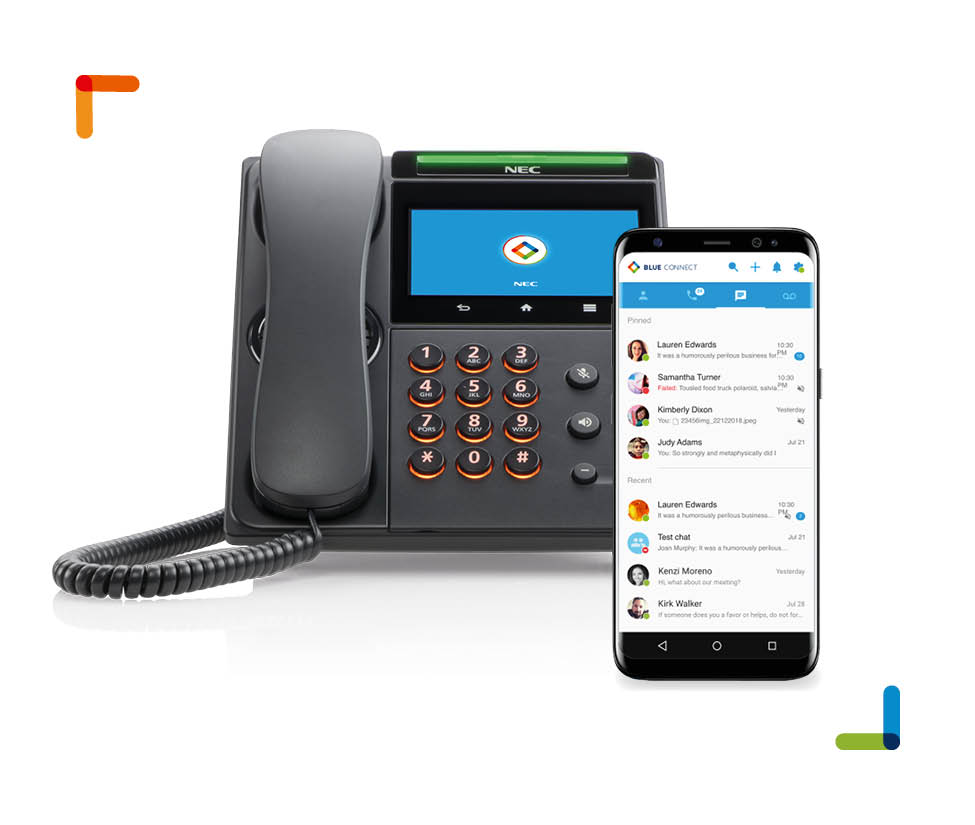
VoIP technology promises to make all of our lives easier. However, this new technology can still seem intimidating to some. In these circumstances, a VoIP-enabled Plug And Play Telephone System can be a great choice. You can benefit from all the advantages of VoIP technology (low cost, the ease of international communications) without the technical anxiety.

Samsung VoIP Telephone Systems

Posted on

Samsung VoIP Telephone Systems

What are the advantages to switching your business communication to Samsung VoIP telephone systems? To start, digital VoIP stands for Voice over Internet Protocol, and it can really make a difference in terms of the cost and performance of your phone systems.

VoIP systems use the power of the Internet to route your calls. In doing so, a VoIP can reduce the number of hard phone lines needed in your office. VoIP shines during periods of heavy call volume. Call traffic must go through to its destinations, regardless of volume at any specific time. Traditional hard-wired telephone systems simply don’t have the kind of flexibility that Samsung VoIP telephone systems do.

This adaptation to fluctuations in call volume is especially useful when inter-office calling. In many businesses, it isn’t outgoing or incoming calls that place the greatest strain on the phone network; stress is caused by calls that are made from within the office. This is doubly true in the case of multiple offices in remote locations. If you have more than one office, VoIP allows you to expand your intranet so that calls can be made across the country, simply by dialing an extension.

We are proud to supply Samsung VoIP telephone systems, as they are well-known as some of the most cost-conscious in the industry. If your business is in need of a communications revision, taking your business digital can really make a difference in the bottom line. Please give us a call, and we’ll steer you in the right direction.

Voice Over IP Networking

Posted on Leave a comment

Voice Over IP Networking

Voice Over IP Networking encompasses a family of different technologies which allow Internet Protocol networks to be used for voice-related applications like telephony, voice instant messaging, and internet teleconferencing. Designed to help at every level of digital voice communication, VoIP breaks down the barriers traditionally associated with physical distance and phone circuits.

A number of popular phone systems use VoIP technology. Developers have created an industry that utilizes desktop applications, telephone services, and corporate phone networks. Voice over IP networking is the core programming that drives the whole system. Cross-platform functional and highly customizable, VoIP networking can be adapted for small businesses as well as corporations that employ thousands of people.

When it comes right down to it, Voice Over IP Networking was invented as a way to simplify corporate networks and improve telephony experiences for users of that network. Fortunately, it is also more cost-efficient and can save companies and even households substantially on their phone bills.

The primary roadblock to widespread consumer adaptation of Voice Over IP Networking is change. It’s easier to convince large businesses and corporations to switch, because the larger the network, the larger the savings. But small businesses and households are more difficult to sway, because they argue that their existing phone systems work just fine. VoIP networking saves money over the long term, and it improves phone efficiency at the same time.

VoIP Business Telephone Systems

Posted on

Choosing a business telephone system for your company shouldn’t be a complicated process. The first step is to come up with a list of requirements that your phone system should have. If you’re deciding on a new system entirely, you should strongly consider Voice Over Internet Protocol, or VoIP. 

VoIP is computer telephony integration that basically uses your business intranet to handle voice communication. The advantages to this system are many. VoIP allows for scalable design and lets you can incorporate voice communication into PC-based applications.

During the process of choosing a business telephone system, make sure that you inquire about all the different functions that are available. In addition to voice mail, it’s now possible to digitally encode voice mail into email, access any voice mail or email address remotely, and even convert faxes into viewable PDF documents which appear in your employees’ inboxes.

Most companies will eventually need to switch to a VoIP business telephone system. Until recently, only big corporations had the kind of capital and technical know-how to make VoIP work effectively and securely. Today, however, it’s easy for small businesses with as few as five employees to take advantage of the cost savings and increased capabilities of these IP based systems.

Setting up your Samsung voice mailbox

Posted on

To get the most out of your voice mail it’s important that you properly set up your personal mailbox.

STEP 1: Record your mailbox greetings

  1. Press the voice mail button on your phone and enter your password (0 0 0 0 by default). Press 5 from the mailbox menu.
  2. Press 1 to assign your no answer greeting
  3. Press 2 to edit the greeting, begin recording when prompted. A typical greeting says “Hi, you’ve reached Mitch Scott. I am currently on the other line or away from my desk. Please leave your name number and a brief message and I will return your call as soon as possible.” press # when finished.
  4. Press 1 to set this as your active greeting
  5. Press 5 to edit mailbox greetings
  6. Press 7 to record your mailbox greeting and follow the prompts to record your mailbox greeting (You can repeat the greeting you used in step 3). Press # when finished.

STEP 2: Record your mailbox name

  1. Press # from the main menu
  2. Press 7 for personal administration
  3. Press 2 to record your name “Mitch Scott” press # when finished

STEP 3: Enter your directory name

  1. Press # from the main menu
  2. Press 7 for personal administration
  3. Press 3 to enter your directory name
  4. Press 2 and follow the instructions to enter your name in the directory

STEP 4: Change your password

  1. Press # from the main menu
  2. press 7 for personal administration
  3. Press 1 to change your password
  4. Press 2 and follow the instructions to change your password.

Hang up

Quick Reference Guide for the Samsung iDCS Phones

Posted on

OUTSIDE CALLS – To place a call to an outside party.

  • Lift the handset.
  • Press an idle (no light) outside line button, line group button or dial a line access code (701 – 7xx) to receive dial tone.
  • Dial the telephone number.
  • Replace the handset or press the ANS/RLS key when the call is complete.

INTERNAL CALLS – To place a call to another extension at your location:

  • Lift the handset.
  • Dial the extension number (201-2xx) or group number (500-5xx).
  • Wait for the party to answer. If you hear a brief tone burst instead of ringback tone, the station you called is set for Voice Announce or Auto-Answer. Begin speaking after the tone.
  • Replace the handset or press the ANS/RLS key when the call is complete.

SPEAKER PHONE CALLS – Your Samsung telephone has full speakerphone capability. This feature may be used for both internal or external calls. To activate this feature.

  • Press the SPEAKER key.
  • Place an internal or external call .
  • Press the SPEAKER key to disconnect the call.
  • NOTE: The handset may be used at any time during the conversation. To resume handsfree operation press the SPEAKER key and replace the handset.

ANSWERING CALLS

OUTSIDE CALLS – To answer incoming calls:

  • Lift the handset or press the ANS/RLS key to answer on SPEAKERPHONE and you are automatically connected to the ringing call.
  • Replace the handset or press the ANS/RLS key when the call is completed.
  • NOTE: If a call is flashing at your telephone but not ringing, you must press the flashing button to answer.

INTERNAL CALLS/VOICE ANNOUNCE CALLS – To answer when another extension calls your telephone:

  • Lift the handset or press the ANS/RLS key to answer on SPEAKERPHONE.
  • Replace the handset or press the ANS/RLS key when the call is completed.
  • NOTE: The volume may be adjusted at any time by pressing the up and down arrow keys.

PLACING A CALL ON HOLD

Calls may be placed on System Hold or Exclusive Hold. Calls placed on Exclusive Hold may only be picked up from the extension that placed them on hold. A call placed on System Hold may be picked up at any extension.

SYSTEM HOLD – To place a call on hold:

  • Press the HOLD button. The call will flash green at your telephone.
  • To take the calller off hold, press that button and the green flashing light will go steady green again.
  • Resume conversation.

EXCLUSIVE HOLD – To place a call on hold at your telephone so other that other users cannot get it.

  • Press the HOLD button twice. The call will flash green at your telephone.
  • To retreive the call, press the flashing green line button or press the HOLD button a third time.
  • NOTE: Internal calls will always be placed on exclusive hold.

Feature Access Code

0 Operator
10 + xxx Pick Up A Parked Call
12 + xxx Pick Up A Held Call
13 Door Lock Release
16 + xxx Speed Dial + Speed Dial Bin
17 Save and Saved Number Redial
18 New Call (recall)
19 Last Number Redial
400 CANCEL Do Not Disturb
401 SET Do Not Disturb
42 + xxx Cancel Message You Left
43 Return Message
44 Callback
45 Busy Station Camp-On
46 Conference
47 Account Code
48 + xx Cancel Programmed Message
49 Send Flash
53 + xxx + 1 In Group
53 + xxx + 0 Out of Group
56 Meet Me Answer
600 Cancel All Call Fowarding
601 + xxx Set Forward All
602 + xxx Set Forward Busy
603 + xxx Set Forward No Answer
604 + xxx Set Forward Busy/No Answer
605 + xxx Set Forward Follow Me
65 + xxx Pick Up Ringing Extension
66 + xx Pick Up Group
67 Universal Answer
* Authorization Code

Vodavi 24-Button Digital Keyset/Button Diagram

Posted on

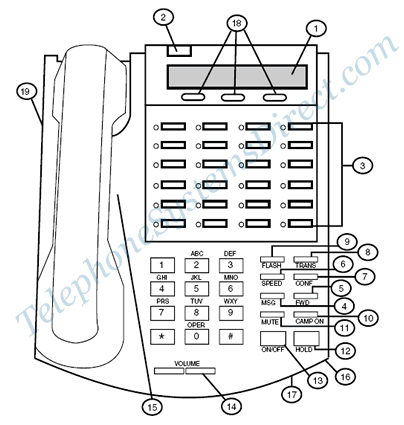
The following illustration and its corresponding table describe the physical features of the Vodavi 24-Button Digital Display Telephone.

Vodavi 24-Button Digital Keyset/Button Diagram

1. (DISPLAY) Displays information about telephone status, dialing directories, and text message information.

2. (MESSAGE INDICATOR) Programmable indication for Ring Line, Voice Mail, Message Wait, or handset operation.

3. (FLEXIBLE BUTTON Keys) Used to access outside lines or access call-handling features.

4. (MSG Key) Used for Auto-CallBack to a telephone which has left a text message or to access voice messages.

5. (FWD Key) Used to forward your calls to another destination, such as a station or voice mail.

6. (SPEED Key)

Changing the time and date – Vodavi STS phone system

Posted on

These are the instructions on changing the time and date on a Vodavi STS phone system. Unless your phone system was purchased from www.telephonesystemsdirect.com you must use Vodavi extensionon 100 for this programming change.

Do not lift handset or press speaker.

Dial **3226 on your Vodavi STS 24 button digital key telephone.

Press the FLASH key and dial 11

Enter the new time and date for your Vodavi phone system in the format below.

Note: the time is in 24-hour format (8:00 PM would be 20:00).

YY MM DD HH MM

Press HOLD

Press the ON/OFF button to exit