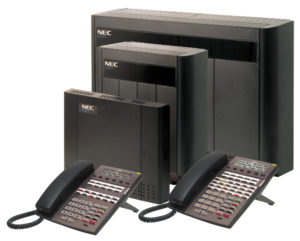
NEC DSX 22B Display Tel common feature buttons

Posted on

Line appearance keys

The first row of button usually has your line keys labeled line 1 – line x

A line key provides an extension user with one-button access to outside lines. The extension user just presses a line key to place or answer a call on the line. There is no need to dial codes to access or intercept outside calls. In addition, a line key provides a Busy Lamp Field (BLF) for the line to which it is assigned (see the table below).

Off – Idle or not installed
On (red) – In use or on Exclusive Hold at a co-worker’s extension
On (green) – In use at your extension
Wink On (red) – On System Hold at a co-worker’s extension
Wink On (green) – On System Hold at your extension
Double Wink On (green) – On Exclusive Hold or recalling your extension
Slow Flash (red) – Ringing into the system
Slow Flash (green) – Ringing or recalling directly to your extension

To place a call using a line key:

1. Lift the handset.
2. Press the line key.
3. Dial the outside number.

To answer an incoming call using a line key.

1. Listen for ringing and look for the flashing line key.

  • Line keys that flash red are for you and your co-workers.
  • Line keys that flash green are just for you (such as DILs and transfers).

2. Lift the handset.

3. Press the flashing line key.

  • If you have Ringing Line Preference, lifting the handset answers the call.
  • If you have Automatic Handsfree, while on a call you can press another line key to put your first call on Hold.

Auto-Attendant Answer

If your incomming calls ring to either an operator phone (usually extension 300) or a group of phones pressing this button will make the auto-attendant answer instead.  Callers will hear your company greeting (Hi thank you for calling xyz company….) instantly.  If your auto-attendant answers calls all of the time you will not have this button on your phone.

Operator Message

This button will flash when a message has been left in your general delivery mailbox.  To check the message simply press the flashing operator message button.  Although extension 300 is usually the operator extension the general delivery messages are NOT stored in mailbox 300.  This is to give you the option of having a generic mailbox and a personal mailbox for the employee at extension 300.  Pressing the operator message button will also allow you to record the greeting that is heard when an outside caller reaches the general delivery mailbox.

Operator Call

The operator call button give you a visual or audio indication that someone has pressed 0 (for the operator) from the auto-attendant.  To answer the call you simply press the operator call button or the line button (this can also be programmed to answer when the handset is lifted).

Hotline buttons

Hotline gives a keyset user with a programmed Hotline key one-button calling and Transfer to another extension (the Hotline partner). Hotline helps co-workers that work closely together. The Hotline partners can call or Transfer calls to each other just by pressing a single key.

Hotline Busy Lamp Indications

Off – Idle or not installed
On – Busy or ringing1
Medium Flash – Partner extension is in DND for outside
calls (option 1).
Fast Flash – Partner extension is in DND for Intercom
calls (option 2) or All Calls (option 3).

Speed Dial Keys

The 10 keys  below the display are your speed dial keys.  These can be used to store frequently dialed telephone numbers.  For a tutorial on programming the speed dial numbers click here.
Transferring calls on a NEC DSX 22B Display Tel without a hotline button

Posted on

Transfer permits an extension user to send (i.e., extend) an active call to any other extension in the system. With Transfer, any extension user can quickly send a call to the desired co-worker. A call a user transfers automatically recalls if not picked up at the destination extension.
An extension user can Transfer both outside calls and Intercom calls.

You can transfer calls in two ways.

Screened Transfer – The transferring user announces the call to the destination before hanging up.
Unscreened Transfer – The transferring party extends the call without an announcement.

To Transfer a call:

  1. Do not hang up.
  2. Press the TRANSFER button.
  3. Dial your co-workers extension
  4. Announce the call to your co-worker (screened transfer) or simply hang up to send the call through unscreened.

Tips: You can press the flashing line key to return to the call if your co-worker doesn’t want it.  You can press the V-Mail button to send the call to your co-workers voice mail.

x-616 Phone Keypad Layout

Posted on

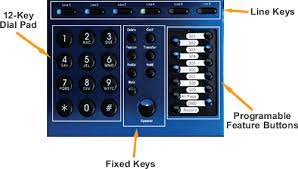
12 Key Dial Pad

Used for…. dailing!

Fixed Keys

Delete, Conference, Feature, Transfer, Redial, Hold, Mute and Speaker

Programmable Feature Buttons

Each digital telephone endpoint has twelve (12) programmable feature buttons, which can be customized by each extension user. There are three programmable feature button categories.

DSS/BLF Key Direct Station Select (DSS) – allows extension users to press one button to dial another extension. In addition, the DSS button doubles as Busy Lamp Field (BLF). The BLF shows the status, idle or busy, of other extensions.

SPD Key Each of the (twelve) 12 buttons can be programmed as a speed dial key. Input the
number to be dialed once the key is identified as a speed key. Simply press the speed key to dial the number once it is programmed. “Feature + 7” will enter a pause, shown as a P.

Feature Key
Feature + 1 = Record
Feature + 2 = Open
Feature + 3 = Flash Key
Feature + 4 = DND
Feature + 5 = Mute
Feature + 6 = Conference
Feature + 7 = Pause
Feature + 8 = Redial
Feature + 9 = Headset
Feature + 0 = All Page
Feature + * = Open

Line Keys

When placing a network call, Telephone Company or VoIP line, press the line button, or dial 9 to access a line. You can speak on the speakerphone, or lift the handset to speak privately. Line buttons that are unlit are free to use. If they are lit blue they are busy and the line that you selected will be lit green.

X-616 Telephone Display Layout

Posted on Leave a comment

Time And Date

The system time and date can be set in system programming or by using Caller ID. Caller ID, if subscribed for, will set the system’s time and date and automatically reset the clock for daylight savings.

Caller ID

Caller ID is a standard feature of the system. When received from the telephone network, it will identify caller and synchronize the date and time of the system. Each call into the system is stored in the Caller ID list.

Phone Book

There are fifty phone book (speed dial) locations, each can up to 24 digits, and a name of up to 16 characters.

Programming Key

The system has two areas of programming; Phone (extension) and System. The Phone programming parameters will only affect the extension that is doing the programming; whereas, the system programming parameters affect the whole system.

Line Keys

When placing a network call, Telephone Company or VoIP line, press the line button, or dial 9 to access a line. You can speak on the speakerphone, or lift the handset to speak privately. Line buttons that are unlit are free to use. If they are lit blue they are busy and the line that you selected will be lit green.

Voice Mail

The center navigation button is equipped with a Light Emitting Diode (LED) which flashes when you have a new voice mail message. At default the LED will be lit indicating that the extension is forwarded to
voice mail.  New voice mail messages are indicated on the display.

Extension Number

Valid numbers are 301 through 399.

shopping basketVisit our online store to purchase a X616 phone system

NEC DSX Personal Speed Dial Programming

Posted on

The personal speed dial buttons on the NEC DSX 22B Display Tel and the DSX 34B Display Tel are the ten buttons located directly below the display. The first of these buttons corresponds to speed dial bin 701 and the last speed dial 710. Once a speed dial number has been stored in a bin you can dial that number by simply pressing the corresponding button.

Programming

  1. Press the softkey under Menu
  2. Press the softkey under Spd
  3. Press one of the ten speed dial buttons that you want to program
  4. Press the HOLD button
  5. Dial 90 at the Line/Group/Intercom: Prompt (this will automatically select a line by inserting a 9)
  6. Press the HOLD button
  7. Enter the telephone number to store
  8. Press the HOLD button TWICE
  9. Enter the name for the speed dial number (this is used for directory dialing)
  10. Press the HOLD button
  11. Press the next speed dial button or Speaker to exit

Samsung message light stays on but there are no messages

Posted on

basketVisit our online store to purchase Samsung telephones

The status indicator light is located at the top right of your Samsung iDCS18D and iDCS28D phone. This indicator flashes whenever you have a message waiting on your phone and turns solid red when your phone is in use. Occasionally that indicator light will remain flashing even though you have no messages.

Why?

Before voice mail systems existed you could use a feature of the phone system to let a co-worker know you tried to contact them. You would dial a feature code (41) and it would make that indicator light flash. When your co-worker returned to their desk they would see the light flashing and dial another feature code (43) and it would call the iDCS28D phone that set the message. These feature codes are rarely used now because of the prevalence of voice mail systems.

What usually happens is this: Someone tries to dial a telephone number but forgets to get an outside line first by dialing 9 or pressing a line button. The telephone number they try to dial begins with 41XXX where the X is an iDCS 28D or iDCS18D extension number thus turning the message waiting light.

Turning The Light Off

To cancel the message:

  1. Leave the handset in the cradle
  2. Dial 42 + XXX (where XXX is your extension number)

TUTORIAL

If you found this article helpful please leave a comment!

NEC DS2000 User Guides and Manuals

Posted on

DS2000 User Guides

DS2000 multibutton feature guide

DS2000 phone quick reference guide

DS2000 System Guides

DS2000 Harware Manual – Descriptions of the NEC DS2000 components and hardware.

DS2000 Software Manual – Instructions for programming the NEC DS2000 phone system.

Voice Mail Guides

DS2000 Intramail Manual – NEC DS2000 and  DS1000 Intramail Programming Guide.

DS2000 Intramail Feature Guide – This manual explains the various features available on the NEC DS2000 Intramail.

Need help with your DS1000 or DS2000 phone system? Contact us at 866.898.2303 option 2 or use the form below.

Making A Conference Call on a NEC DSX 22B display telephone

Posted on

The NEC DSX-40, DSX 80 and DSX 160 phone system can do a conference call with up to 8 members. This can be a combination of outside lines (up to the number of telephone lines you have from the phone company) and internal extensions. With the NEC phone system you can have a maximum of 8 simultaneous conferences.

To make a conference call on a NEC DSX-40, DSX-80 or DSX-160 telephone system:

While you are talking on an outside line or an intercom call:

  1. Press the CONF button (bottom right of phone).
  2. Press a line button, hotline button, dial an extension number or dial 9 followed by the telephone number you wish to add.
  3. Press the CONF button to start the conference.
  4. To add additional members repeat steps 1 – 3.

NEC DSX Line Ringing

Posted on

Incoming calls on a NEC DSX telephone system usually follow Key Ringing (3112).  The DSX 22B and 34B Display Phones can be programmed to ring or not ring on an individual basis by using the feature code # 7 2 5.   Press # 7 2 5 and you’ll notice that all of your line appearance buttons are now either red, green, or amber. 

  • A red light means your phone will not ring (lamp only).
  • Green means your phone will ring (standard).
  • Flashing Green means a delay ring.
  • Slow flashing green means night ring.

Press the line button repeatedly to cycle through the ring types.  Press the speaker button when you are finished.  If you press # 7 2 5 and do not see any lights on your phone you may be using loop keys instead of line keys and will need to enter system programming to make your phone ring.

Tutorial: